Trade Planner
Type a ticker and pick a timeframe. The Trade Planner maps a bullish and a bearish scenario for that stock when the available structure supports a complete plan.
Each case names the prices it depends on, possible objectives, and the closing condition that would invalidate it. No clean setup is also a useful answer: reference prices alone do not establish a coherent plan.
A trade plan is a structured way to look at a chart. It is not financial advice and not a recommendation to buy or sell anything. It is generated automatically, it isn't reviewed by a person, and it can be wrong. Both cases are shown precisely because nobody knows which one happens — plans are not predictions, and plenty never reach their targets. Nothing in a plan accounts for your circumstances. See the Disclaimer.
Making one
- Open Trade Planner in the sidebar (or the bottom bar on your phone).
- On the Generate tab, type a ticker — any listed stock or ETF, not just ones PPP has alerted.
- Pick a window: 2 weeks, 1 month, 3 months, 6 months or 12 months.
- Hit Generate plan.
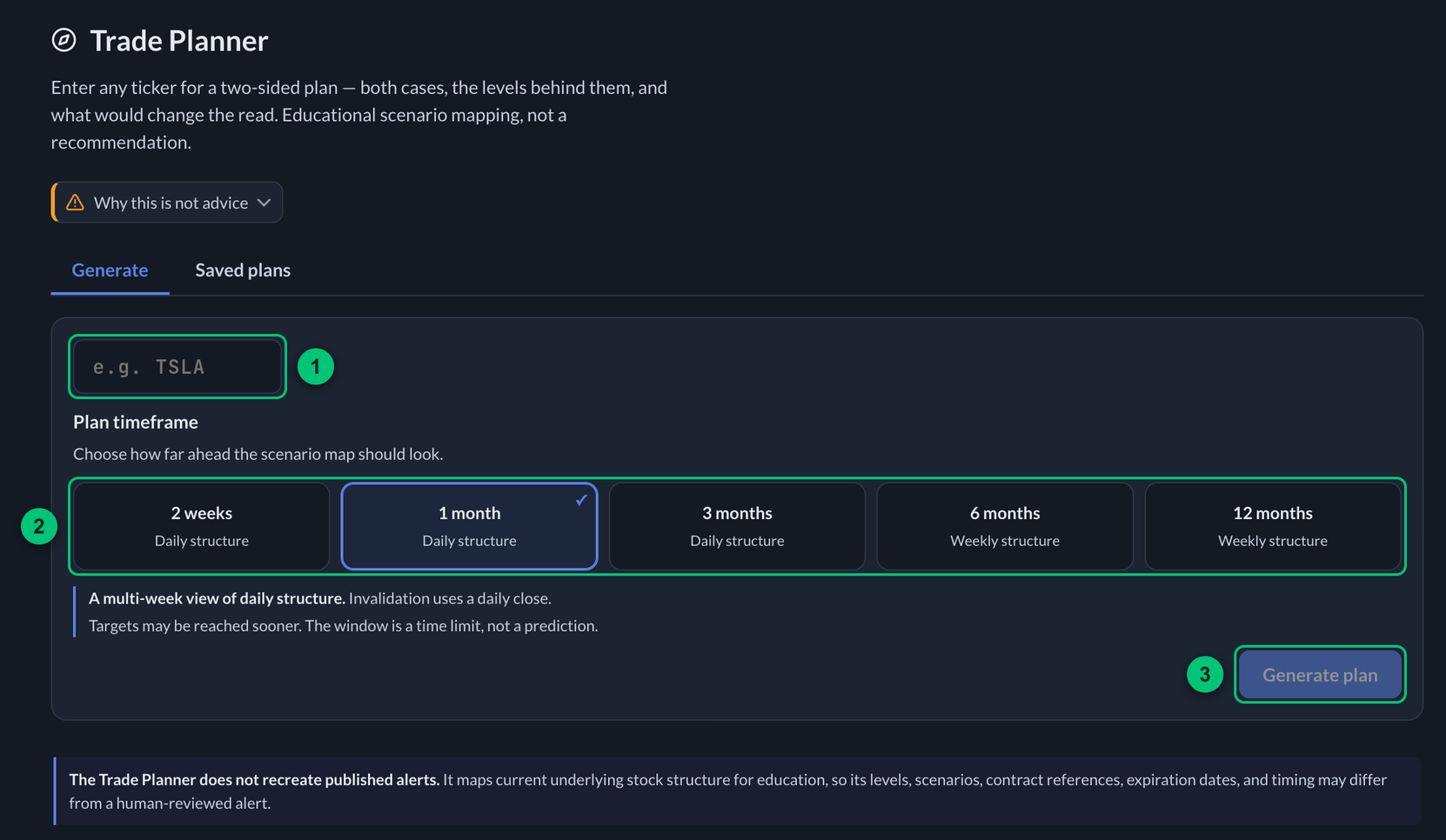
The Generate tab before a ticker is typed.
① Ticker box — type one ticker here. ② Window — pick how far ahead the plan looks. ③ Generate plan — starts the plan.
Generation can take about a minute. The progress display shows it working, and the result appears on the same tab. Changing the timeframe alone does not generate a plan.
Use the ticker, not the company name. Type TSLA, not "Tesla". If the planner can't find what you typed, it says so and suggests the closest real ticker. Tap Use on a suggestion to put it in the box, then hit Generate plan. A ticker that isn't found doesn't use up a plan. Enter one ticker at a time: clear the box before typing the next one.
Completed, successfully saved plans remain under Saved plans. Check the completion message if a result could not be saved. Reopening a plan keeps its original levels and end date.
The two tabs
Generate is where you make and read a plan. Saved plans holds your retained plans, newest first, with controls to load older history.
Free members can reopen older saved plans and read basic tracking and review. Paid members also have aggregate Insights and contract references where available. Generation remains subject to the allowance shown for your account; reviewing a saved plan does not generate another one.
The window matters
The window changes the structure the planner emphasizes and the close used to assess invalidation.
| Window | Main structural lens | Invalidation |
|---|---|---|
| 2 weeks | Recent daily swings and range | Daily close |
| 1 month | Daily structure across recent weeks | Daily close |
| 3 months | Broader daily structure with weekly context | Daily close |
| 6 months | Weekly structure and larger shelves | Weekly close |
| 12 months | Weekly and derived monthly structure, including multi-year levels when available | Weekly close |
The planner uses volatility and distance checks to limit the target ladder. These are heuristics, not probabilities or guarantees. A stock can move farther or less than the estimate. Longer windows can make farther structure relevant, but do not require more targets or a wider invalidation. The plan's end date is a time limit, not a prediction of when a move will happen.
Your plans are yours
Your saved-plan list is private to your account. Other members cannot browse it, and their plans do not appear in yours.
The Saved plans tab is your history, newest first. Tap any row to open it. Each row shows the ticker, the window it was written for, and a one-line status of what's happened since.
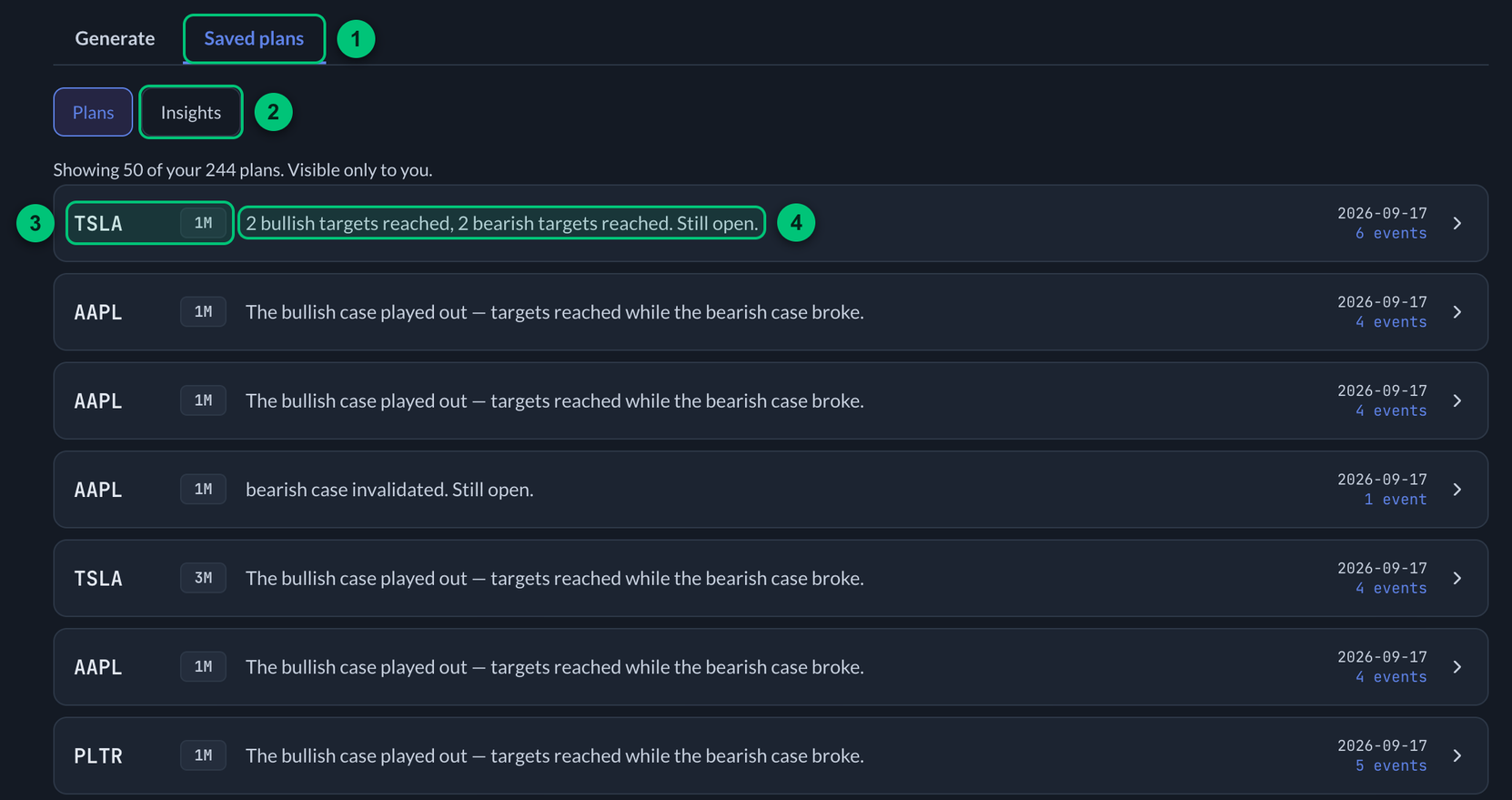
① Saved plans — the tab that holds your history. ② Insights — the aggregate view for paid members. ③ Ticker and window — what the plan was written for. ④ Status — one line on what's happened since.
Where personal monitoring is available, a bell marks a plan configured for notifications. Monitoring is chosen per plan and does not extend its original window.
Use Show more or the older-history control to load additional saved plans. Paging the list does not delete older records.
Member Insights reads eligible complete plans beyond the visible page. Version counts distinguish current, older and unknown generation versions; they do not mean older tracking records have been recreated. Use the displayed sample and denominator when interpreting a rate.
Where Remove is available, it deletes that saved plan and its tracked history.
Tracked after the fact
A saved plan can be checked against later recorded prices: did price intersect a zone, satisfy a confirmation, reach a target, or close through invalidation? The Tracked through date tells you how far the available record extends; this is not a live execution log.
Open a saved plan and Plan tracking (Replay) shows the original map's progress and a dated timeline. Original levels stay fixed. Current-tracking charts can add recorded milestones when matching chart data is available.
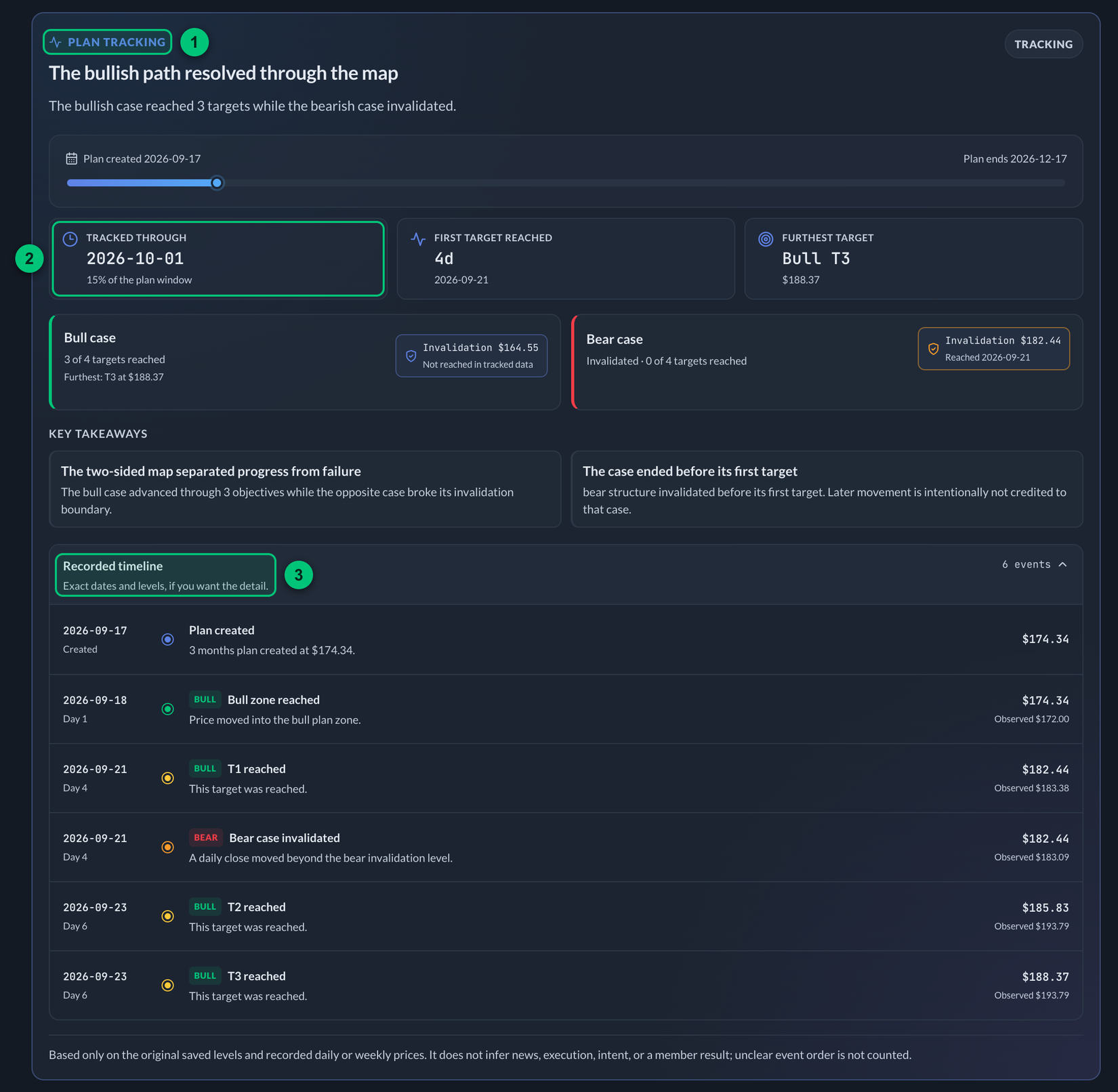
A saved three-month plan, two weeks in, with the timeline opened.
① Plan tracking — the block that follows the original map. ② Tracked through — how far the available record extends. ③ Recorded timeline — each event with its date, plan level and observed price.
That history powers each saved plan's replay and review, plus the aggregate Insights tab. See Reading a plan.
Generation-day price bars do not earn target credit. A daily bar can contain movement from before the plan existed. A zone-only case can start at creation when the recorded original price is already inside its zone, but that does not credit an earlier target touch. Uncertain event order is kept visible without upgrading it to a result.
Ask for one instead
You can also just ask the PPP AI Assistant:
"make me a trade plan for TSLA"
It builds the same plan and drops it into your Trade Planner. Same thing, fewer clicks.
The Trade Planner lives in the tracker. The assistant in a Discord channel isn't signed in to your PPP account, so it has nowhere to save a plan — it'll point you here instead.
Tell us what to fix
Where shown, the planner's feedback box lets you report a confusing level or suggest an improvement. The box under a plan includes its ticker with your note. You can also use the app's Support control.
What it won't do
- It won't tell you what to buy or sell, or how much.
- It maps both sides when a complete plan is supported; it can return No clean setup.
- It won't pick an option contract for you. It can show which contracts sit at the plan's levels and how liquid each one is — see Contracts at these levels — but nothing is marked as the one to take, and you choose.
Next: Reading a plan →