Filters & Views
PPP Alerts is one panel. Its header holds every control that shapes the table under it: the Table | Charts switch, the title with a live count of the alerts that match, Filters, Show expired, Options | Stock, the layout switch, and the ⋯ menu.
Filters
Press Filters in the alerts header to open the filters tray, right above the table. Press it again to tuck the tray away; the filters you set stay on. A small number on the button shows how many of them are on, and the count next to the title shows how many alerts match.
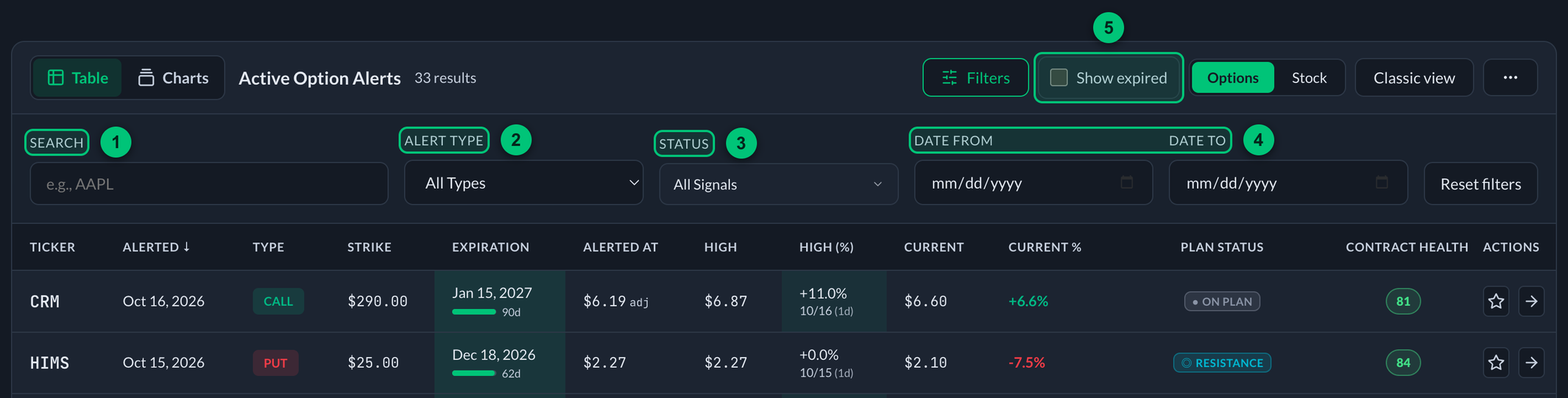
The count next to the title updates as you filter. Reset filters sits at the end of the tray.
① Search — type a ticker to show only that symbol. ② Alert Type — all alerts, calls only, or puts only. ③ Status — filter by Plan State. ④ Date From / Date To — limit to alerts published within a date range. ⑤ Show expired — include alerts whose contract has expired; it sits in the header, next to Filters.
| Filter | What it does |
|---|---|
| Search | Type a ticker (e.g. AAPL) to show only that symbol. |
| Alert Type | Show All, only Calls, or only Puts. |
| Status | Filter current Plan State — On Plan, Support Zone, Under Pressure, Invalidated, or Unavailable. Options view also offers the historical +50% Contract Delivered result and Near Expiration note. Final Review remains an expired-alert display in this version rather than part of the live Plan State enum. |
| Date From / Date To | Limit to alerts published within a date range. |
| Show Expired | Toggle whether alerts whose option contract has expired appear. Off by default. See Near Expiration and expiration for what remains available in each lens. |
View My Alerts, in the ⋯ menu at the right of the header, narrows the table to just the alerts you've starred.
Press Reset filters to clear everything at once. Pagination controls let you show 10, 25, 50, 100, 500, or 1000 alerts per page.
Sorting
Sortable headers show the active arrow (↑ / ↓); click the same header again to reverse the order. In Options view you can sort by Ticker, Alerted, Type, Strike, Expiration, Alerted At, High, High (%), Current, or Current %. In Stock view you can sort by Ticker, Alerted, Direction, Alerted At, or Now.
The Status badges and the Stock view's Best Move, Target Progress, and Invalidation are calculated summaries, so their headers are informational rather than sort controls.
Views
Three switches change what you see:
- Table | Charts, at the start of the alerts header, switches between this table and Alert Charts, every alert as a chart.
- Options | Stock changes the performance lens. Options shows the alerted contract and its historical achievement badge; Stock shows the underlying plan and stock performance. Plan State keeps the same meaning in both, while the mobile cards and CSV export follow the selected lens.
- Modern view | Classic view changes the layout of the Options lens. Stock uses its purpose-built modern table.
The layouts are:
- Modern view — the default styled table with hover effects.
- Classic view — a spreadsheet‑style grid that adds milestone columns (+10 · +20 · +30 · +40 · +50 · +75 · +100%) that fill in green as each alert's change to High crosses them. Great for scanning a lot of alerts fast.
- Cards — on phones, the table automatically becomes a stack of cards. Options cards show contract fields such as strike, expiration, Alerted, Current, To High (the change to High), Plan State, and any +50% result. Stock cards instead show Alerted At, Now, Best Move, Target Progress, Invalidation, and Plan State.
Your Options/Stock lens and Options layout choice are remembered on each device.
A common workflow: set Status → Support Zone, then compare the current quote, invalidation distance, target progress, contract history, and remaining time. Open the detail page for the authored plan and chart.