Quick Start on your phone
This walks through the app the way most members use it. Each picture has numbered boxes, and the list under it says what each number is.
Using a computer instead? See Quick Start on a computer.
1. Find your way around
When you sign in, you land on PPP Alerts: every active alert, newest first.
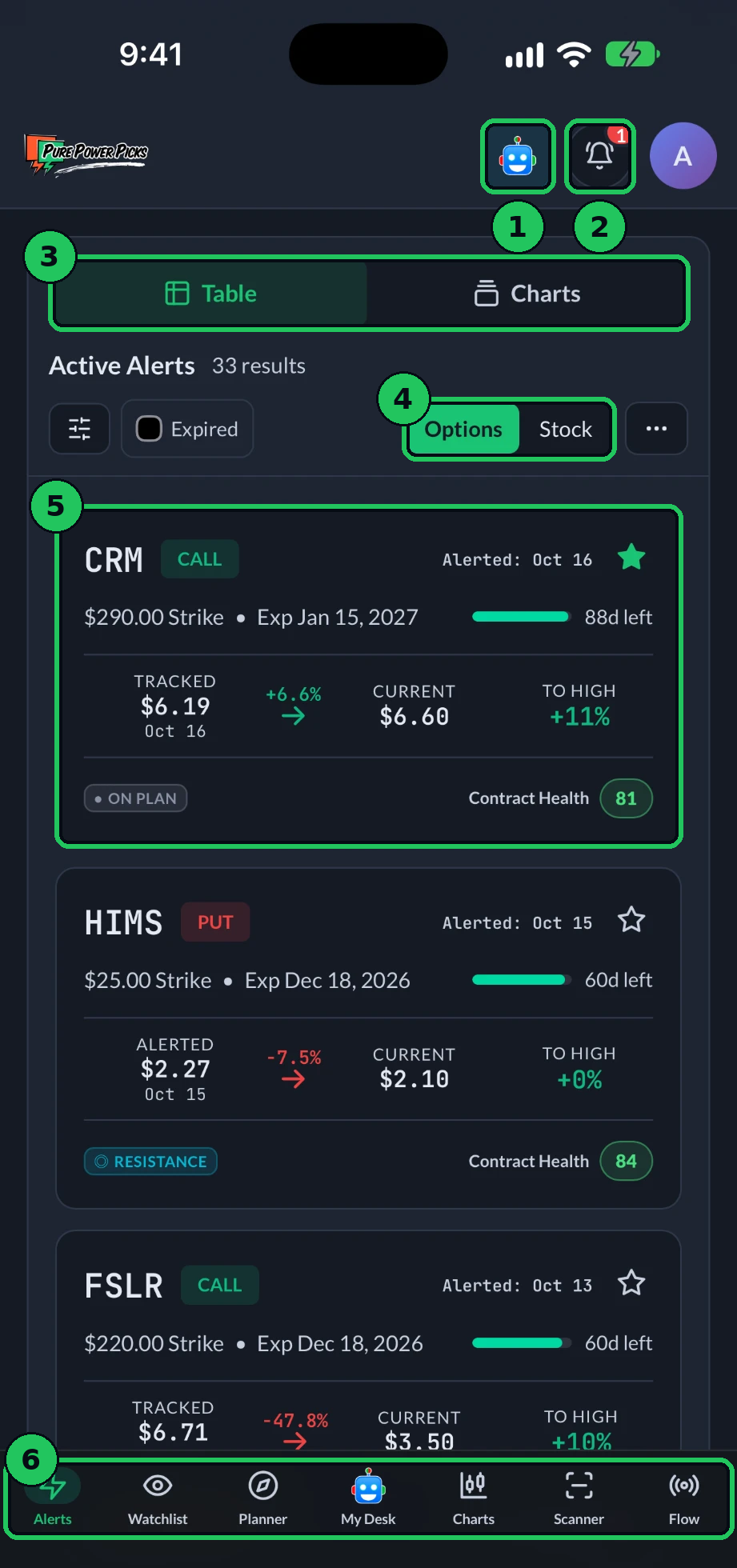
- Watt, the assistant. Tap it from any screen to ask a question about an alert or a stock.
- Notifications. The red number is how many you have not read yet.
- Table or Charts. Table is the list. Charts shows every alert as a chart.
- Options or Stock. Options shows how each option contract is doing. Stock shows how the stock itself is doing.
- An alert card. Tap it to open the full alert.
- The bottom bar. Alerts, Watchlist, Planner, My Desk, Charts, Scanner and Flow. It hides while you scroll down and comes back when you scroll up.
The round letter at the top right opens your account menu: Account, light or dark mode, Support, and this help site.
Reading a card: the ticker and CALL or PUT, the strike and expiration, the price the contract was alerted at, where it is now, and To High, the highest it has been above the alerted price so far. The badge at the bottom left (On plan, Resistance, Under pressure, Invalidated) says how the stock is doing against the plan. Contract Health is a 0 to 100 read on the option contract itself. If a card says Tracked instead of Alerted, the alerted price never traded, so it is measured from the closest real price instead.
2. Open an alert
Tap any card. The top of the page is the scoreboard.
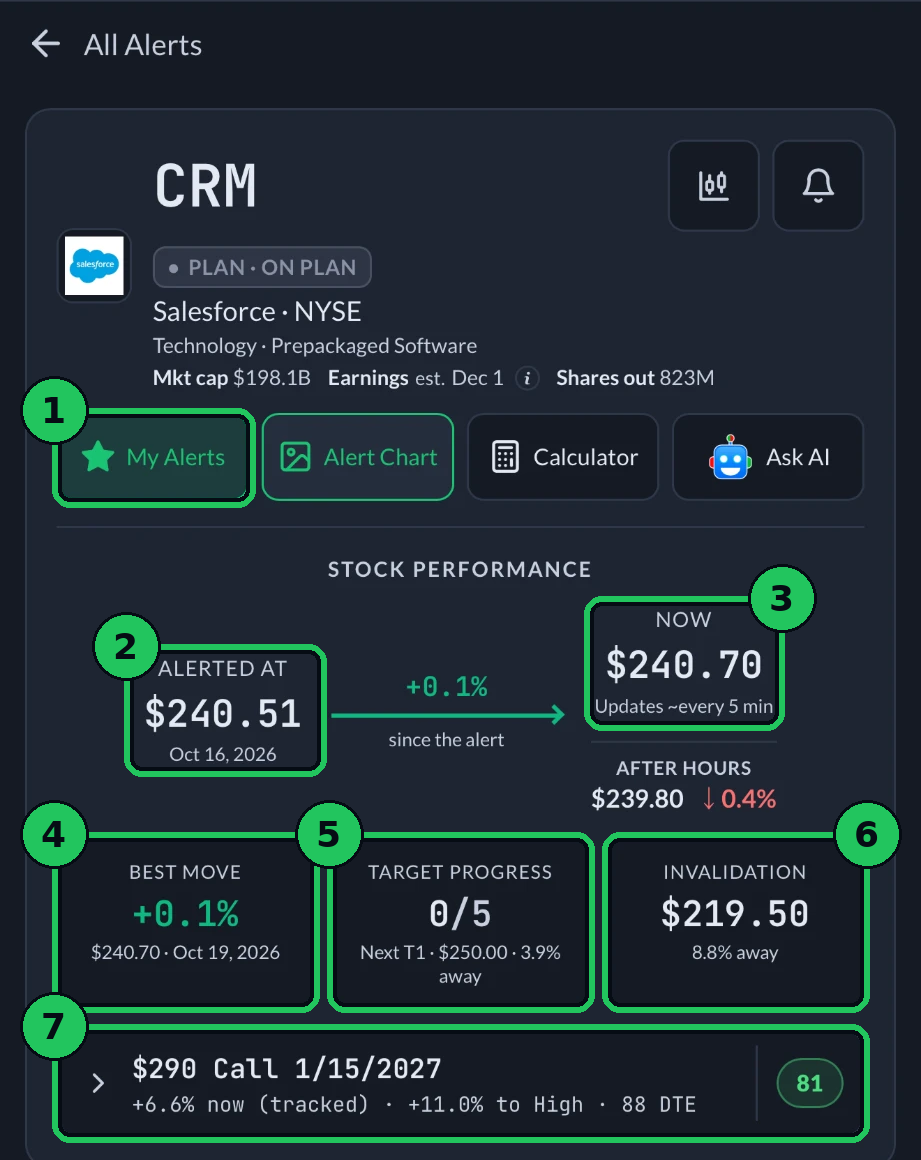
- My Alerts. Tap the star to keep this alert in your own list (it lives in My Desk). Optional.
- Alerted at. The stock's price when the alert posted, and the date.
- Now. The stock's latest price, updated about every 5 minutes in market hours. After-hours moves show underneath.
- Best move. The furthest the stock has moved in the idea's direction since the alert.
- Target progress. How many of the plan's price targets the stock has reached, and how far the next one is.
- Invalidation. The level where the idea is wrong, and how far price is from it right now. This is the most important number on the page.
- The option contract. Today's change, how far it has reached to its High, the days to expiration, and its Contract Health score. Tap it for the full contract numbers.
Alert Chart, Calculator and Ask AI sit next to the star. Ask AI opens Watt with this alert already loaded.
3. Read the plan
Scroll down. The plan is the part to read before anything else.
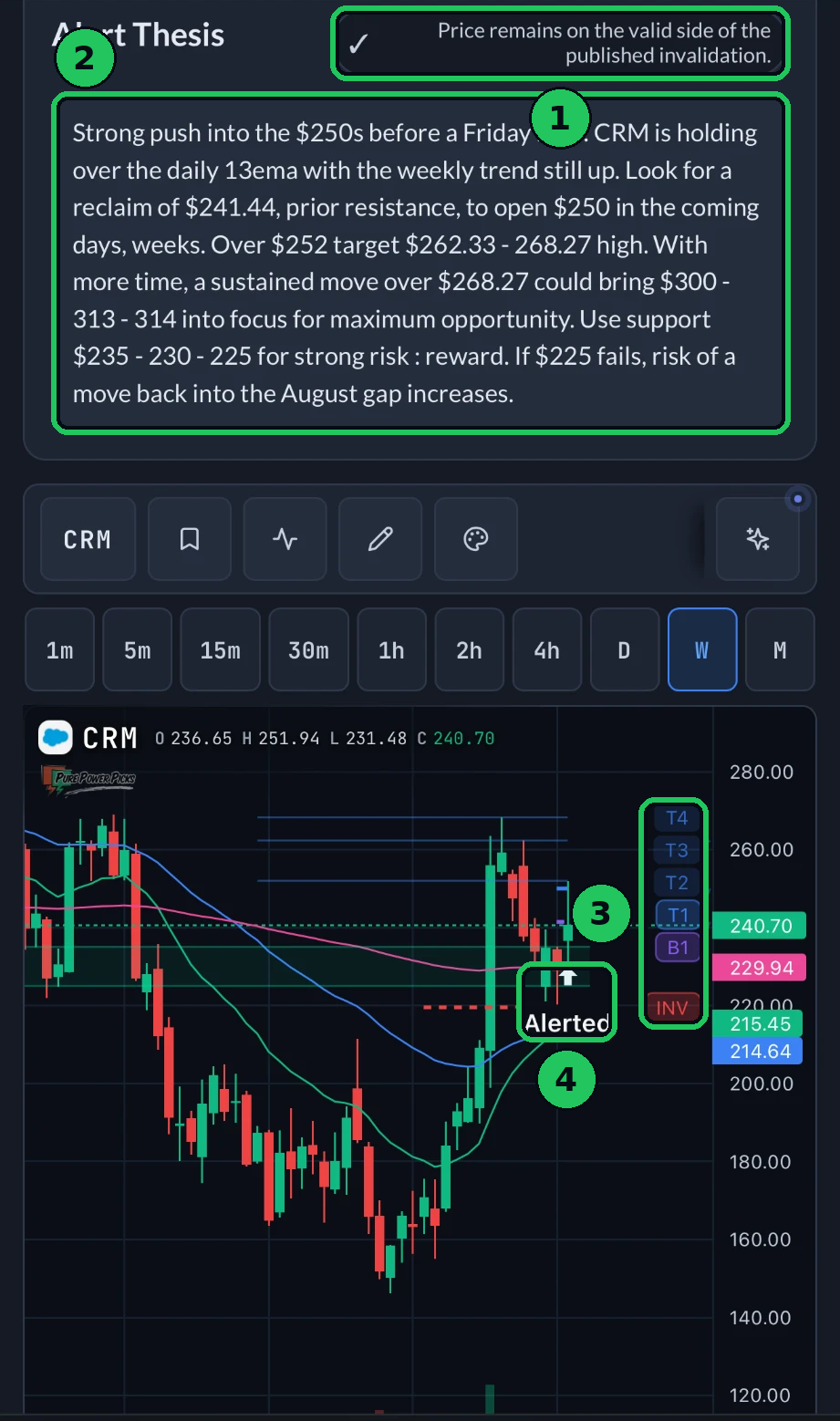
- Plan check. A one-line read on whether price is still on the right side of the plan.
- The thesis. Why the idea was alerted, the levels to watch, the targets, and what would make it fail.
- Plan levels on the chart. T1 to T4 are the targets, B1 is the breakout level, and INV is the invalidation level.
- Alerted. The arrow marks the moment the alert posted.
Further down the page you will find the published price levels, the final review once an alert expires, and your own private notes.
4. Notifications
Tap the bell to see what you have been sent.
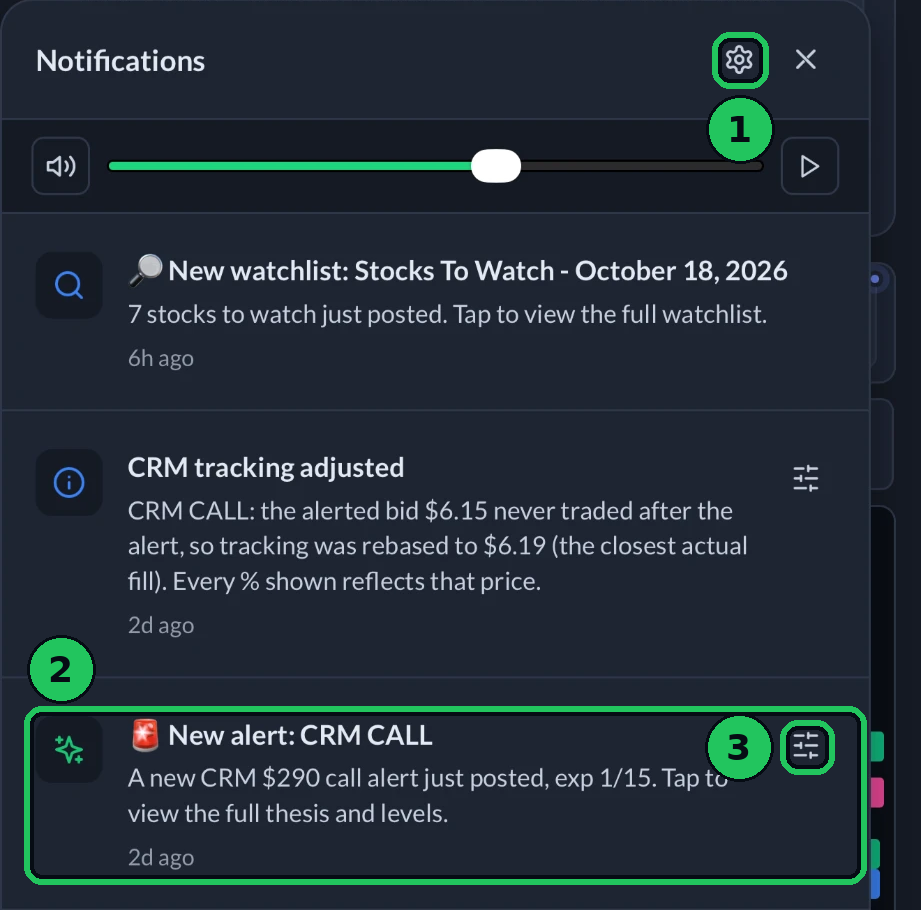
- Settings. Opens the full Notifications page.
- A notification. Tap it to go straight to that alert or watchlist.
- Manage notifications for this alert. Quiet one alert without changing anything else.
Choose what you get
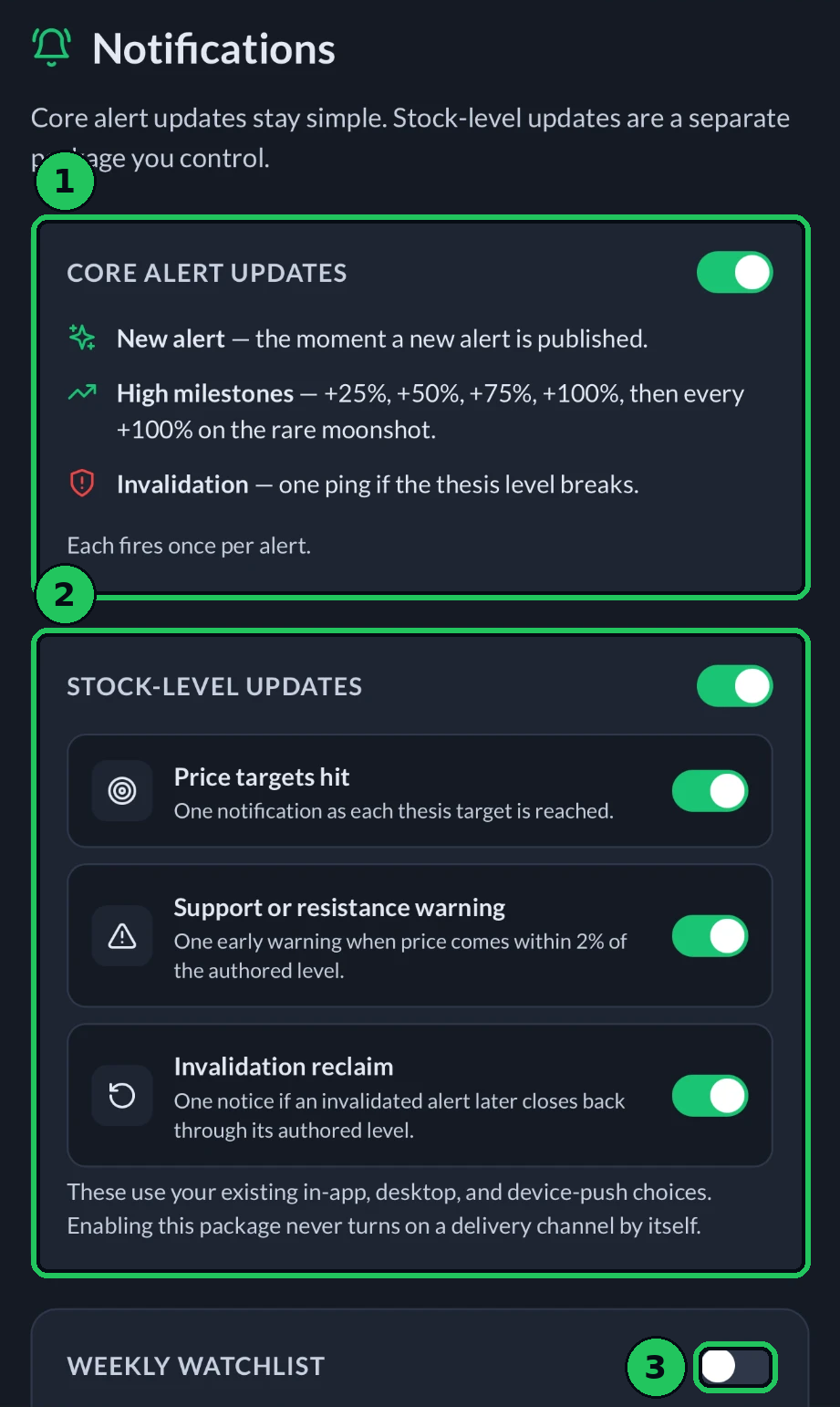
- Core alert updates. One switch for the three that matter most: a new alert, High milestones (+25%, +50%, +75%, +100%, then every +100%) and invalidation if the plan's level breaks. Each fires once per alert. Keep this on.
- Stock-level updates. Optional extras: a target reached, price coming within 2% of support or resistance, and an invalidated alert closing back through its level.
- Weekly watchlist. One notification when the new Stocks To Watch list posts.
If nothing arrives on your phone, check that notifications for the Pure Power Picks app are allowed in your phone's settings. More on the Notifications page.
5. Ask Watt
Tap the robot at the top, or My Desk in the bottom bar.
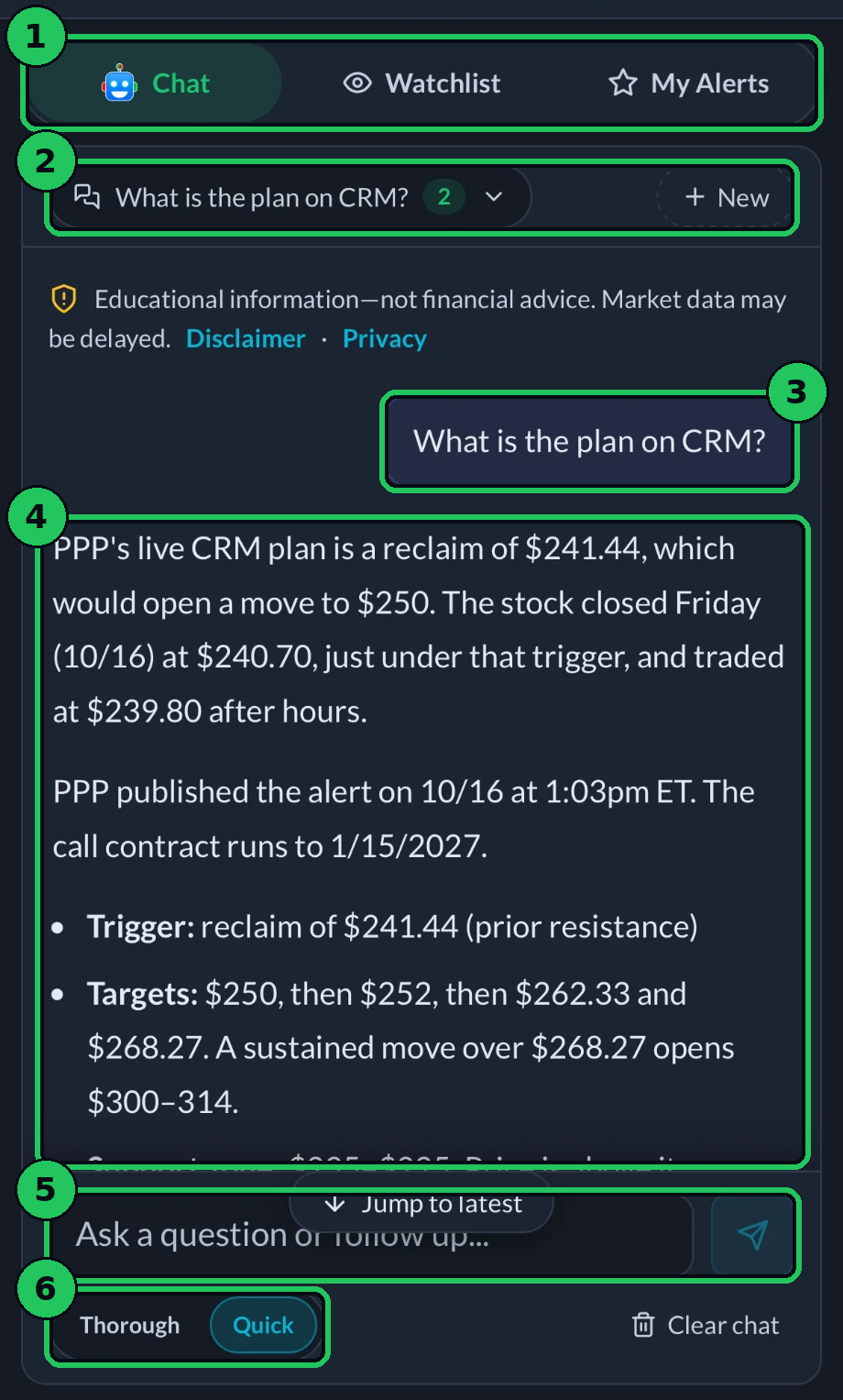
- Chat, Watchlist, My Alerts. My Desk holds Watt, your own watchlist, and the alerts you starred.
- Your conversations. Pick an earlier chat, or tap New to start fresh.
- Your question. Ask in plain English, for example "What is the plan on CRM?" or "What looks good from this week's watchlist?"
- Watt's answer. It reads the same data the tracker does: prices, the alert plans, technicals, news, earnings dates and more. It says when it does not have something.
- Type here to ask a follow-up, then tap send.
- Quick or Thorough. Quick answers fast. Thorough digs deeper and takes a few seconds longer.
Watt uses AI credits, which reset every week. See AI Credits.
6. Plan any ticker
Tap Planner in the bottom bar.
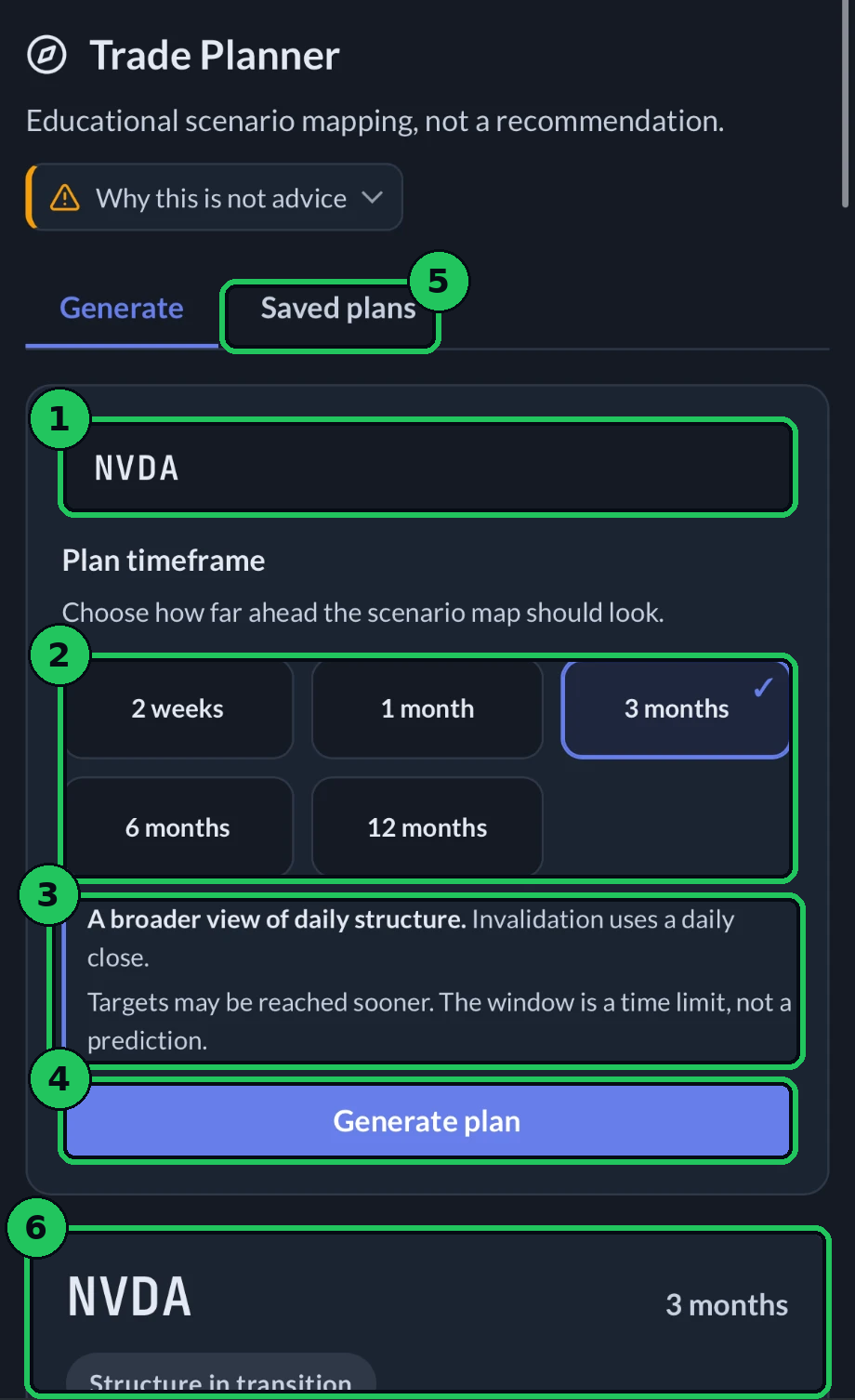
- Type any ticker.
- Plan timeframe: how far ahead the plan looks, from 2 weeks to 12 months.
- What that choice means. Longer plans use a broader view, and the window is a time limit, not a prediction.
- Generate plan. It takes a moment to build.
- Saved plans: every plan you have made, to open again.
- Your plan appears below. Every plan has a bull case and a bear case, each with its zone, its invalidation level (judged on the daily close), its targets, its reward vs risk, and a chart with every level drawn on.
Plans are price levels, not timing forecasts. More on the Trade Planner page.
7. The weekly watchlist
Tap Watchlist for the week's Stocks To Watch.
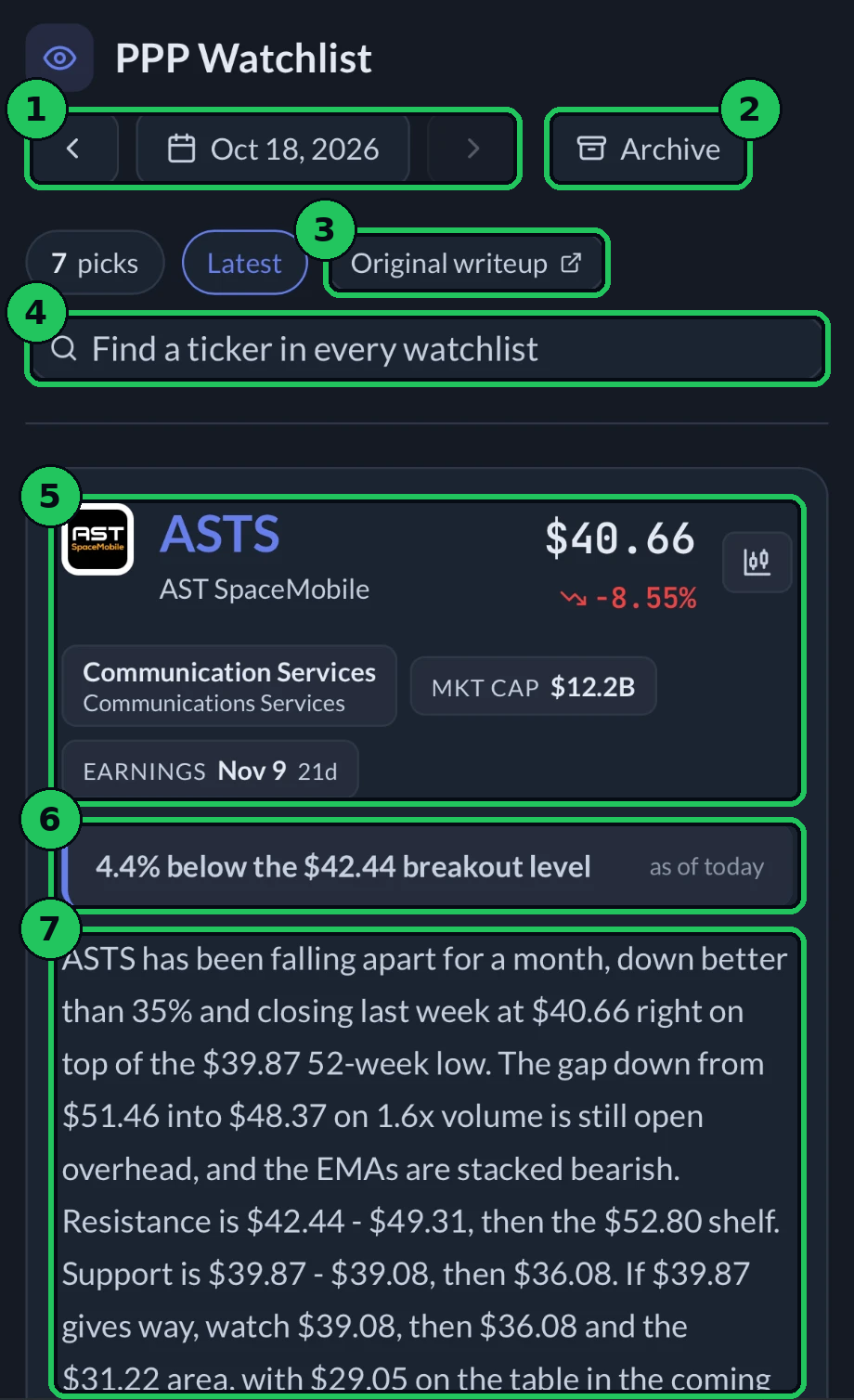
- Pick the week. The arrows step back and forward a week, and the date opens a calendar.
- Archive. Every watchlist we have posted.
- Original writeup. The full post on purepowerpicks.com.
- Find a ticker in every watchlist at once.
- The stock: price, today's move, sector, market cap and the next earnings date. The chart button opens its chart.
- Where price sits against the level that matters most right now.
- The write-up. What the stock has been doing and what we are watching for. Scroll on for its support, resistance, upside and downside levels and a chart.
A watchlist stock is not an alert. Some turn into alerts later in the week, some never do.
8. The Chart Scanner (Full Membership)
Tap Scanner in the bottom bar. Every night it scans thousands of stocks for chart patterns and studies.
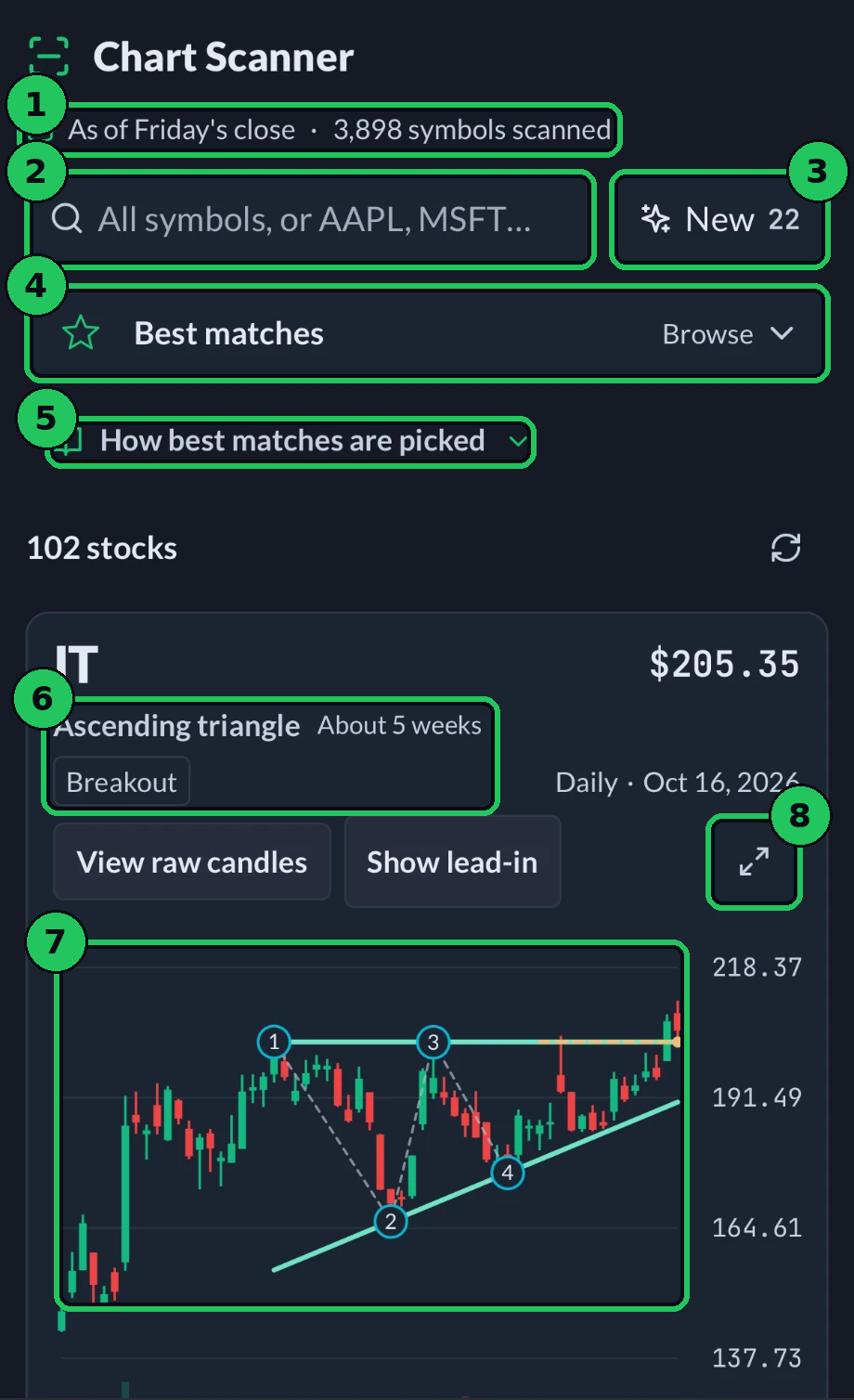
- When it last scanned, and how many symbols.
- Search for one stock, or leave it on all symbols.
- New shows only studies that started on the latest session.
- Best matches is where it opens: one card per stock. Browse picks any other study instead.
- How best matches are picked, in plain words.
- The study found, how long it has been forming, and its stage (for example Forming or Breakout).
- The chart with the pattern's numbered points. Tap a point to see its price and date.
- Full screen.
More on the Chart Scanner page.
What a typical week looks like
- A new alert posts. Your phone buzzes: "New alert: CRM CALL." Tap it.
- Read the plan first. The thesis, the targets and, above all, the invalidation level.
- Star it if you want to follow it closely. It shows up in My Desk.
- Let the tracker watch it. You will hear about it again only when it reaches a High milestone or breaks its invalidation level.
- On the weekend, the new watchlist posts with the stocks we are watching for the week ahead.
- When an alert expires, its page shows a final review of how the idea played out.
What to expect: prices update about every 5 minutes in market hours. Not every idea reaches its target, and many dip before they move, which is why every plan publishes an invalidation level. Alerts are educational ideas, not advice, and what you do with one is always your call.
Need help?
Ask Watt anything about the app or an alert, tap Support in your account menu (the round letter at the top right), browse the rest of these docs, or send us a message and a person on our team will reply by email.