Notifications
Notifications keep you in the loop without having to watch the tracker all day. You control what you get pinged about from the Notifications page (and the 🔔 bell in the header).
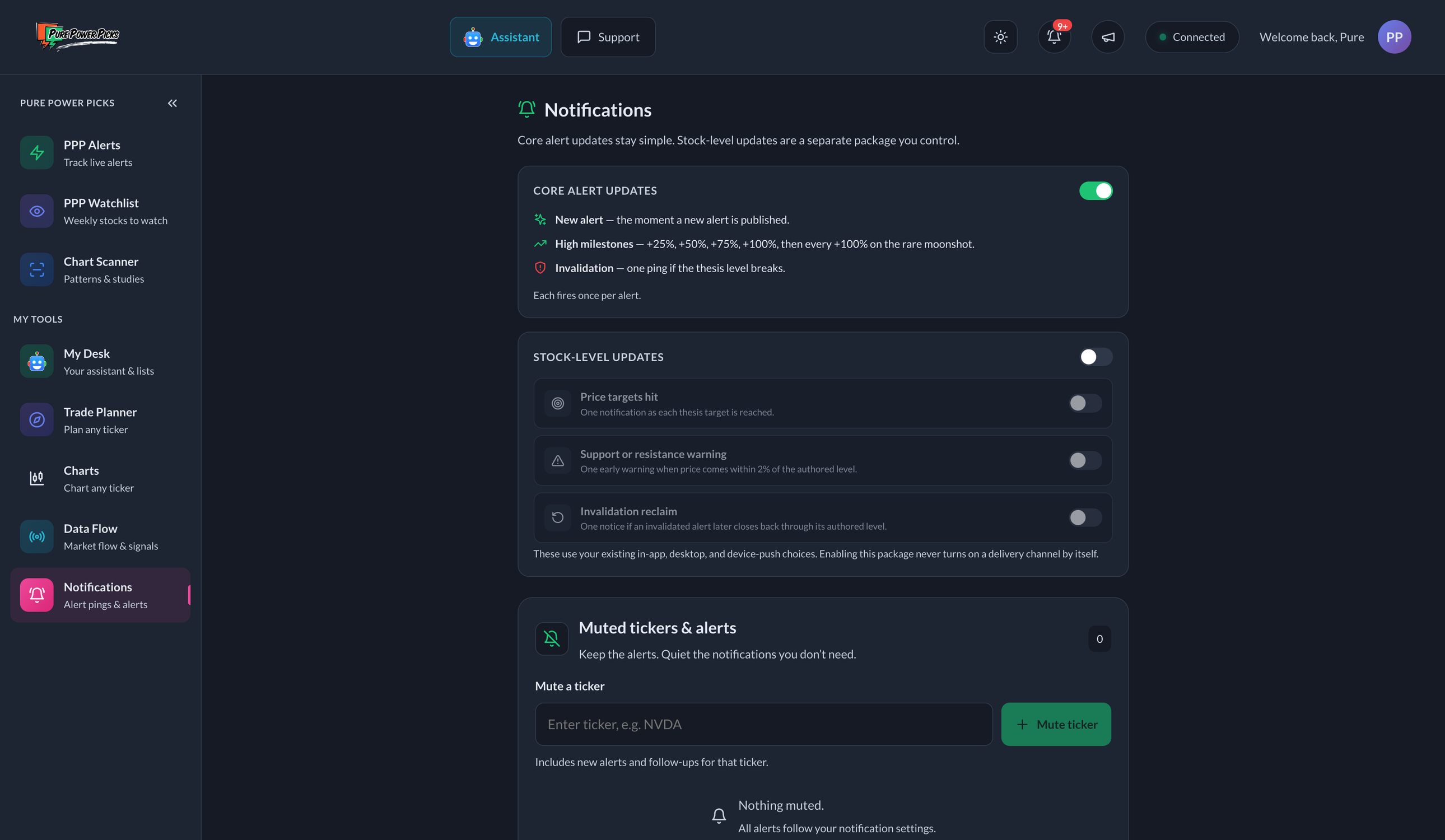
Notification settings keep Core alert updates separate from optional stock-level updates.
Notifications are available to members and Free Access users. If you don't see the Notifications page or bell, make sure you're signed in.
Core alert updates
By default, notifications run in a simple Core mode — the signal, without the noise. It covers the main alert lifecycle:
| Notification | When it fires |
|---|---|
| New Alert | The moment a new alert is published. |
| High Milestones | When an alert's change to High crosses +25%, +50%, +75%, +100% — and then every additional +100% on rare runaway moves. Each fires once. |
| Invalidation | A single heads‑up if an alert's thesis breaks its critical level (its "stop"). |
A single Core alert updates switch turns this package on or off. Tracking-basis adjustments also follow the Core lifecycle automatically when an alert's contract tracking is rebased to an actual traded price.
Weekly watchlist
One notification when the weekly watchlist is posted, with its own Weekly watchlist switch. For members it is on unless you turn it off: the new list always shows in your notification bell, and it also arrives as a push on your phone when Push notifications is on in the Pure Power Picks app. Turning the switch off stops both. On Free Access, the switch follows push: it is on when push is on in the app or in your browser, and off when it is not, until you flip it. The line under the switch says where it shows right now.
On Free Access you hear about every week. In a free watchlist week the notification opens the full list. In other weeks it lets you know the members' list is out and shows what membership includes.
Optional stock-level updates
Stock-level updates are a separate package and are off by default. Turn on the Stock-level master first, then choose any combination of:
| Notification | When it fires |
|---|---|
| Price targets hit | Once as each authored thesis target is reached. |
| Support or resistance warning | One early warning when price comes within 2% of the authored level. |
| Invalidation reclaim | Once when an officially invalidated alert later records a finalized daily close back through its authored invalidation level. |
Turning on Stock-level updates never turns on a delivery channel by itself. It uses your existing in-app and device-push choices. Anything that was already true before you opted in is silently claimed as history, so enabling the package does not create a burst of old notifications.
Each target and support warning belongs to the original alert, not each new price crossing. A later touch does not send it again. A separate alert for the same stock has its own levels and notification history. After official invalidation, recovery is handled by the reclaim option rather than another support warning. Historical backfills do not send notifications.
Mute an alert or ticker
Use the small bell on an alert's detail page:
- Mute this alert quiets follow-ups for that trade idea. The bell turns yellow. A new alert for the same stock can still notify you.
- Mute all ticker alerts quiets current and future alerts for that stock. The bell turns red.
Manage these choices under Muted tickers & alerts on the Notifications page. The two rules are independent: removing a ticker mute does not remove an individual-alert mute. Expired individual alerts are tucked away under Show expired; their saved mute remains in place. Ticker mutes stay until you remove them.
Mutes apply to Core and Stock-level notifications across your account's in-app, desktop and device-push channels. They do not remove alerts, change My Alerts, or affect weekly watchlists. Unmuting resumes future notifications without replaying the known events missed while muted. A notification already sent to your phone cannot be recalled.
The controls are available on the web and included in the next native app build. Choices saved on the web already apply to that account's native push delivery. Free Access and member sign-ins currently keep separate mute preferences.
Where notifications show up
- In the tracker — they collect in the alert notifications bell in the header, with an unread count. Open it to see recent events (new alert, milestone, invalidation) with quick links to the alert.
- On your phone (push) — on the native iOS/Android app, you can opt in to push notifications so you're pinged even when the app is closed. You'll approve the system permission on each device. Event choices sync with the same account, but device permission is separate per phone or tablet.
- On desktop — you can opt in to browser desktop notifications; your browser will ask permission the first time. The Notifications page has a Desktop alerts card that shows the current status and a Send test notification button so you can confirm they actually arrive.
They also pop up in the corner of the tracker as they arrive. Each one stays until you dismiss it. After 20 seconds the older ones fold into a small stack you can tap open to catch anything you missed, and Dismiss all clears the lot.
Opening one clears it. Tapping a notification takes you where it points and marks it read at the same time, so the badge stops counting it. That holds everywhere: the bell, the corner popups, a desktop alert, and a push notification on your phone. The X is still there for anything you want gone without opening it.
Every notification is a link
Click or tap a notification anywhere it appears — the corner pop-up, the bell, the Activity list on the Notifications page, a desktop banner, or a phone push — and it opens the thing it's about:
| Notification | Where it takes you |
|---|---|
| New Alert, milestone, invalidation | That alert's detail page |
| New Watchlist | That week's watchlist |
Keyboard works too: tab to a notification and press Enter.
Desktop alerts not showing up?
Desktop notifications pass through three separate switches, and all three have to be on. The Notifications page shows you exactly where it's stuck:
- The app toggle — the Desktop alerts card on the Notifications page (or the 🖥️ icon on the bell). If it says "Off," turn it on.
- Your browser — the first time, your browser asks permission. If the card says "Blocked in your browser," re-enable it via the lock icon in the address bar → Notifications → Allow.
- Microsoft Edge (and Chrome with quieter notification prompts) doesn't pop up a question. It puts a small bell icon in the address bar instead, and the tracker tells you it's waiting. Click that bell, then choose Allow, and desktop alerts turn on.
- Your operating system — this is the one people miss. Even with the app and browser set correctly, your OS can mute your browser:
- macOS: System Settings → Notifications → your browser (e.g. Google Chrome) → turn on "Allow Notifications" and set the style to Banners or Alerts. Then turn off Focus / Do Not Disturb.
- Windows: Settings → System → Notifications → allow your browser, and turn off Do Not Disturb / Focus assist.
Use the Send test notification button: if you click it and nothing appears, the block is at your operating system (step 3). One more thing — desktop banners only pop when the tracker isn't the window you're looking at; if it's your active tab you'll hear the in-app sound instead.
Free Access notifications
Free Access uses the same Notifications page, with a few additions:
- A one-time prompt. After you open an alert, view a watchlist, or finish a Trade Plan, the app may ask whether you want notifications. Not now is always fine: it waits a day before asking again, stops after three asks, and you can turn notifications on any time from the Notifications page.
- A "Turn on notifications" card (app). Until push is on, the top of PPP Alerts in the app shows a small card with a Turn on button. If you already said no to your phone's notification question, the card shows where to turn them on in your phone's Settings instead. Close it with the X to hide it for 3 days.
- Browser push notifications (website). On the website, turn on Browser push notifications to get updates in your browser even when the tracker tab is closed. Your browser asks for permission once. Turning it off stops only that browser; a phone with push on keeps working. Once browser push is on, the older in-tab Desktop notifications switch is hidden so you do not get the same update twice. (On an iPhone, browser push only works for a site added to the Home Screen; the Pure Power Picks app is the easier route.)
- Weekly Trade Plan reminder. If you have used the Trade Planner before and have push on, you get one push on Monday morning when your free plan for the week is ready. Turn it off under Reminders on the Notifications page.
- After your seven-day alert window. You keep the alerts from your window, and their updates keep reaching you. The alerts feed, those alerts' pages and the Notifications page also show how many new member alerts have gone out since your window ended and when the latest one did. They never show which stock or contract it was.
Sound & volume
Notification sound controls live on the alert notifications bell in the header: open it to mute/unmute, set the volume, and hit the test button to preview. Volume is saved per device, so you can have it loud on your desktop and quiet on your laptop.
"What's New" vs. alert notifications
Two different buttons live in the header — don't confuse them:
| Button | What it's for |
|---|---|
| 📣 What's New (the megaphone) | Product updates — new features, fixes, and improvements to the tracker itself. |
| 🔔 Alert notifications (the bell) | Market events on your alerts — new alerts, milestones, invalidations. |
Managing it
From the Notifications page you can:
- Turn Core alert updates on or off.
- Opt in to the separate Stock-level updates package and select its event types.
- Opt in to desktop and mobile push notifications.
- Review a feed of recent notification events, and mark them read.
Sound mute and volume are on the bell itself (see Sound & volume above).
If you only want the standard alert lifecycle, leave Stock-level updates off. You can enable or disable each optional stock event at any time without changing Core updates or your delivery channels.
Notifications are informational pings about alert activity — not trade instructions or advice. See the disclaimer.